
How it works
Three steps. No Terminal.
No bottles to configure, no Wine versions to pick, no command line. Every clip below is the real app.
Step 1: Pick a store
Choose Steam, GOG Galaxy or Epic Games (beta). Steam and GOG get their official installers; Epic runs through the open-source Legendary client, with no Epic launcher. Each store gets its own bottle, so they never get in each other's way.
Screen recording: the Stores screen lists Steam, Epic Games (beta) and GOG Galaxy, each installed in its own bottle. The pointer moves across the stores and clicks Open Steam.
Step 2: Vermut sets up Wine
Each bottle gets Wine 11 and the graphics layer that suits its store: DXMT for Steam, DXVK for Epic, WineD3D for GOG. You can change it later. You don't have to.
Screen recording: the pointer opens the Steam bottle from the sidebar, switches to the Graphics tab and points at the selected backend, DXMT.
Step 3: Play
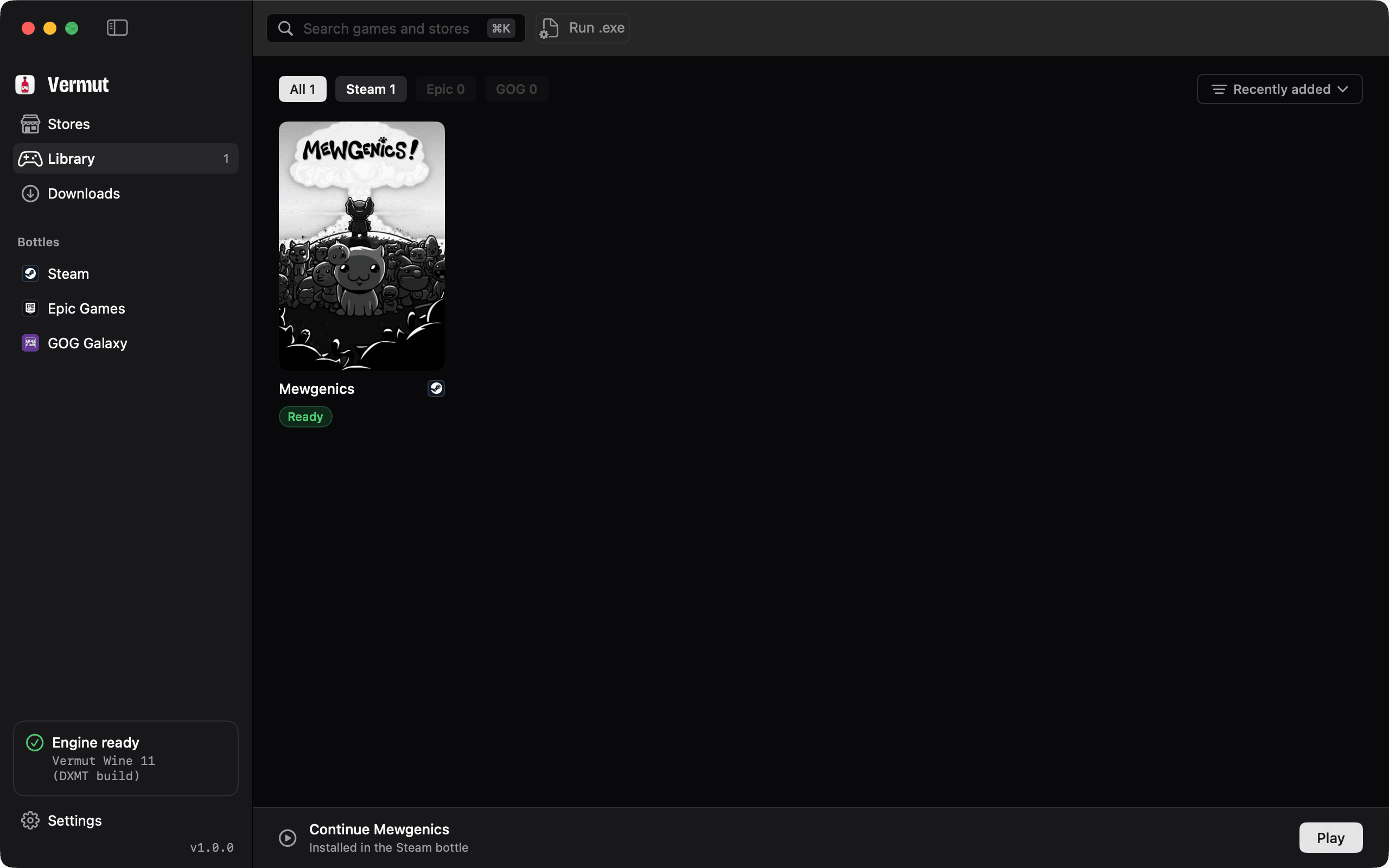
Sign in to your store as usual and install your games. They appear in your Library, and Play starts each one in the right bottle.
Screen recording: the pointer opens the Library, where a Steam game is marked Ready, and clicks Play in the Continue bar.
Honest compatibility
What runs, and what doesn't.
Vermut runs Windows games through Wine. Plenty of games work well. Some never will, and we'd rather tell you now than after a 60 GB download.
Usually runs
- DirectX 9, 10 and 11 games, translated to Metal by DXMT or DXVK.
- Indie and older titles, which are often the easiest wins.
- The Steam and GOG Galaxy clients themselves, plus your Epic Games library through Legendary (beta).
Needs extra setup
- DirectX 12 games need Apple's Game Porting Toolkit (D3DMetal). Vermut detects it if you install it, but never bundles it.
- Games with launchers of their own, such as the EA app or Ubisoft Connect, may need Run .exe inside a bottle and some trial and error.
Won't run
- Games with kernel-level anti-cheat, including Valorant, Fortnite and Call of Duty. The anti-cheat blocks Wine, and nothing on the Mac side can change that.
- Anything that needs a Windows driver, such as some peripheral or DRM tools.
Before you buy a game, check Are We Anti-Cheat Yet? for anti-cheat status and CodeWeavers' compatibility database for Wine reports on the Mac.
Compared
Where Vermut fits.
There are good ways to run Windows games on a Mac. Here's how they differ, as of October 2026.
Price
- Vermut
- Free
- Whisky
- Free
- CrossOver
- From $7412 months of updates; 14-day free trial [3][4]
- Heroic
- Free
Open source
- Vermut
- Yes, MIT
- Whisky
- Yes, GPL-3.0 [2]
- CrossOver
- NoBuilt on Wine (LGPL)
- Heroic
- Yes, GPL-3.0 [6]
Maintained
- Vermut
- Yes
- Whisky
- NoArchived 9 April 2025; a community fork continues [1][2]
- CrossOver
- YesCrossOver 26, February 2026 [5]
- Heroic
- Yesv2.22.4, 15 October 2026 [7]
Sets up Steam, Epic and GOG for you
- Vermut
- YesSteam and GOG in their own bottles; Epic (beta) via Legendary, no Epic launcher
- Whisky
- NoYou create a bottle and run each installer
- CrossOver
- YesFrom its install catalogue; Epic and GOG since CrossOver 25 [9][10]
- Heroic
- Epic, GOG, AmazonIts own launcher; no Steam client [6]
Wine engine
- Vermut
- BundledWine 11 with DXMT and DXVK; D3DMetal if you install it
- Whisky
- Bundled, frozenNo upgrade to Wine 8+ [1]
- CrossOver
- BundledCodeWeavers' own build
- Heroic
- You chooseDownloads Wine, GPTK builds, or uses CrossOver [8]
Works without Terminal
- Vermut
- Yes
- Whisky
- Yes
- CrossOver
- Yes
- Heroic
- Yes
Support
- Vermut
- GitHub issues
- Whisky
- None
- CrossOver
- Email and phoneWhile your licence is active [3]
- Heroic
- CommunityGitHub and Discord
Need commercial support or the widest coverage? Buy CrossOver. CodeWeavers are among the biggest contributors to Wine, and every Mac Wine project, Vermut included, builds on that work.
Sources, checked 19 October 2026
- [1]Whisky maintenance notice
- [2]Whisky-App/Whisky on GitHub (archived)
- [3]CodeWeavers store
- [4]CodeWeavers: How CrossOver licences work
- [5]CodeWeavers: CrossOver 26 release
- [6]Heroic Games Launcher FAQ
- [7]Heroic releases on GitHub
- [8]Heroic wiki: Using Heroic on a Mac
- [9]CodeWeavers: Three game clients that work with CrossOver
- [10]CodeWeavers: CrossOver 25 release
Support Vermut
Free, and staying that way.
Vermut is built in spare time. Donations pay for that time and for the Macs and games we test on. No paid tier is coming either way.
Opens PayPal in a new tab.
Not a money thing? These help just as much.
Star on GitHub
Stars help other Mac gamers find the project.
Star the repositoryReport a bug
Something broke? An issue with your macOS version and logs gets it fixed.
Open a bug reportTell us which games work
Played something? Post the game, store and graphics backend, working or not.
Send a game reportShare Vermut
Know someone who games on a Mac? Send them the link.
FAQ
Questions, answered.
Is Vermut really free?
Yes. It's open source under the MIT licence, with no account, no paid tier and no telemetry.
Does it work on Intel Macs?
No. Vermut is built for Apple Silicon: M1 and every chip since.
Which version of macOS do I need?
macOS 14 Sonoma or later.
Will my game run?
It depends on the game. Most DirectX 9 to 11 games do; games with kernel-level anti-cheat don't. See compatibility for the full picture.
Does Vermut see my Steam or Epic password?
No. For Steam and GOG you sign in inside the official store app, running in its own bottle. For Epic (beta) you sign in on Epic's own login page, and Legendary keeps the session on your Mac.
Does Vermut install the Epic Games Launcher?
No. Epic support is in beta and uses Legendary, an open-source Epic client: sign in, see your library, install and launch games, without the Epic Games Launcher.
Does it include Apple's Game Porting Toolkit?
No, Vermut never bundles it. If you install it yourself, Vermut detects it and offers D3DMetal as a graphics option.
Why does macOS warn me?
Vermut is free and open source, and it isn't signed with a paid Apple Developer ID or notarized, so Gatekeeper can't vouch for it. Allow it once in System Settings › Privacy & Security (see the first-launch steps). You can review the source code and compare the DMG's SHA-256 with the one on this page.
Do I need Terminal or Homebrew?
No. Everything happens in the app, from installing a store to launching a game.
How is it different from Whisky?
Whisky was a general-purpose Wine wrapper and is no longer maintained. Vermut is built around game stores: one bottle per store, set up for you, with a Library for everything you install.
How do I uninstall it?
Delete each bottle from its Danger zone in Vermut, which removes the store and its games, then drag Vermut to the Trash.
Download
Get Vermut for your Mac.
One DMG, straight from the latest GitHub release. Free, with no account to create.
On first launch, open System Settings > Privacy & Security, click “Open Anyway” and confirm with Touch ID or your password. How it works
- Version
- 1.1.3
- Size
- 2.4 MB
- macOS
- 14 Sonoma or later
- Mac
- Apple Silicon (M1 or later)
- Licence
- MIT
- SHA-256
9d2dac95464d3eae81eea7c57a0c175f8a0844f7780f8f2defbdf1f1e26909e9
Install in a minute
- 01Open Vermut-1.1.3.dmg from your Downloads folder.
- 02Drag Vermut to the Applications folder.
- 03Open Vermut from Applications. If your Mac doesn't have Rosetta 2 yet, Vermut installs it for you.
First launch: allow Vermut once
macOS warns you because Vermut is a free, open-source app that isn't signed with a paid Apple Developer ID. You can read every line of the source code and check the download against its SHA-256.
Open Vermut, then click Done
Double-click Vermut in Applications. macOS shows “Vermut” Not Opened. Click Done, not Move to Trash.
Click Open Anyway in Privacy & Security
Choose Apple menu › System Settings › Privacy & Security, scroll down to Security and click Open Anyway next to the message about Vermut. The button appears for about an hour after step 1.
Click Open Anyway again
A confirmation dialog appears. Click Open Anyway.
Confirm with Touch ID or your password
macOS may ask for Touch ID or your Mac password. That’s normal: just confirm. macOS remembers the choice, so you only do this once.

“Vermut” Not Opened
Apple could not verify “Vermut” is free of malware that may harm your Mac or compromise your privacy.
Security
Allow applications from App Store & Known Developers
“Vermut” was blocked to protect your Mac.
Open AnywaySimplified illustrations, not screenshots.
This is the flow on macOS 15 Sequoia and later, where Control-click › Open no longer skips the check. On macOS 14 Sonoma, Control-click › Open still works. Apple Support: Open a Mac app from an unknown developer
Prefer Terminal? One-line install (skips the Gatekeeper prompt)
The script downloads the latest DMG and copies Vermut to Applications. Read it before you run it.
curl -fsSL https://raw.githubusercontent.com/Contessafry/Vermut/main/install.sh | bash